 DuoWOA
 Windows Insider Program Channels
Edit This PageYou can find out which Windows versions are supported for each device model here
Option: Latest Windows Insider Program Versions
Microsoft releases Insider Preview builds to you through channels, which are each designed to bring you a different experience based on the quality of Windows you need for your life and your device. When choosing a channel, you should keep in mind:
- How stable you need your device to be
- What level of issues you can handle on your device
- How early in development you’d like to see features and changes
- Whether or not you need Microsoft support
As Microsoft continues to evolve the way they’re building and releasing Windows in the future, they may introduce new channels to bring you new experiences.
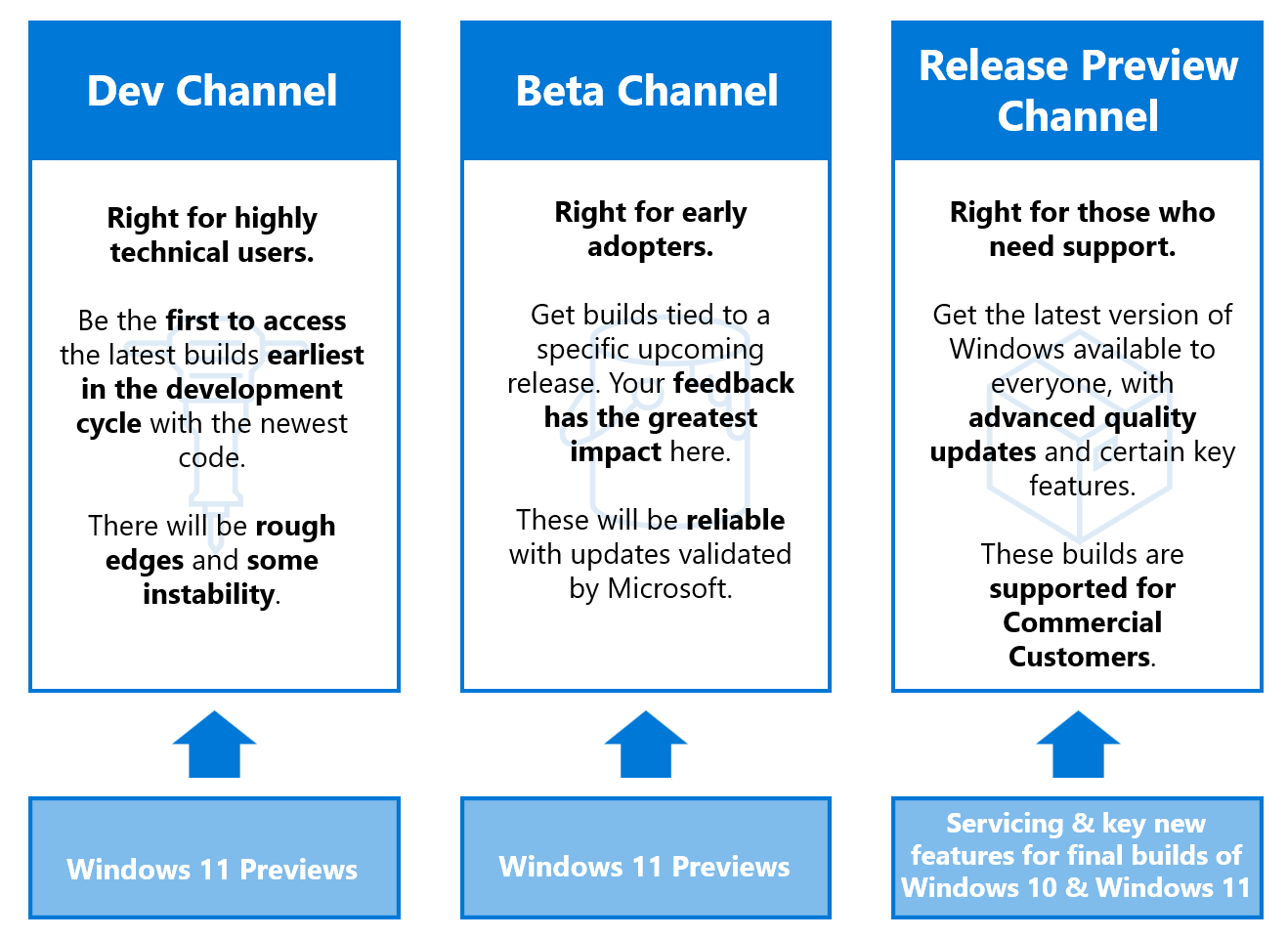
For more information about the insider program, please see the Windows Insider Program website
Steps
- Presuming you are working on a Windows AMD64 machine, download and extract the
win-XXX.zipfile from the UUPMediaCreator repo.
What version do I download?
If your computer (different from the device or disk you want to update!) is running Windows on an Intel or AMD 64-bit CPU, please get the
win-x64.zipfile.If your computer (different from the device or disk you want to update!) is running Windows on an Intel or AMD 32-bit CPU, please get the
win-x86.zipfile.If your computer (different from the device or disk you want to update!) is running Windows on a Qualcomm or Apple 64-bit CPU, please get the
win-arm64.zipfile.If your computer (different from the device or disk you want to update!) is running Windows on a ARM32 CPU or anything else, consider getting another device as this program simply is not compatible with your PC.
NOTE: For apps to be included in the image for Windows 11 Version 22H1 or higher, please run the tool on Windows 11.
- Navigate to the directory you extracted the downloaded ZIP file onto, you should see files like
uupdownload.exeinside.
Download commands
- Inside the directory, open command prompt and run one of following commands (depending on what version of Windows you would like to use):
Windows 11 Version Next (Release Preview Channel)
uupdownload -s Professional -e Professional -v 10.0.22621.100 -r External -b ReleasePreview -c ni_release -t arm64 -l en-USWindows 11 Version Next (Beta Channel)
uupdownload -s Professional -e Professional -v 10.0.22621.100 -r External -b Beta -c ni_release -t arm64 -l en-USWindows vNext (Dev Channel)
uupdownload -s Professional -e Professional -v 10.0.22621.100 -r External -b Dev -c ni_release -t arm64 -l en-USWindows vNext (Canary Channel)
uupdownload -s Professional -e Professional -v 10.0.22621.100 -r External -b CanaryChannel -c ni_release -t arm64 -l en-USThis will download the professional edition of Windows for arm64 architecture for English version. If you want to change the language, use the standard Windows language pack commands. Installing the right language pack will save a lot of time for download.
- Once the download is completed, you will see a new folder with prefix “10.0.22000…” (or something different!) created inside the extracted folder. This contains all the required Windows files.
Creation commands
Let’s create an ISO from the Windows build download.
Open up the command prompt as Administrator and type:
UUPMediaConverter.exe -u <10.0.22000... name of your Windows build folder> -i Windows11_Pro_arm64_en-US.iso -l en-US -e Professional- Once that’s done, mount the newly created
Windows11_Pro_arm64_en-US.isoon your Windows machine. You will find the install.wim file in your mounted ISO drive inG:\sources\install.wim.
© 2020-2024 The Duo WOA Authors
Snapdragon is a registered trademark of Qualcomm Incorporated. Microsoft, the Microsoft Corporate Logo, Windows, Surface, Surface Duo, Windows Hello, Continuum, Hyper-V, and DirectX are registered trademarks of Microsoft Corporation in the United States. Android is a registered trademark of Google LLC. Miracast is a registered trademark of the Wi-Fi Alliance. Other binaries may be copyright Qualcomm Incorporated and Microsoft Surface.
Limited emergency calling
Running Windows on your Surface Duo is not a replacement for a proper phone operating system and does not have emergency calling capabilities.
Hello from Seattle (US), France, Italy.